
Are you finding yourself frustrated with your macOS Sonoma acting up? You’re not alone! Whether it’s sluggish performance, unexpected crashes, or quirky glitches, tech troubles can turn our beloved Macs into a source of stress rather than joy. But fear not—before you consider a lengthy call to customer support or an expensive trip to the repair shop, we’ve got you covered! In this post, we’ll explore quick and effective solutions that can get your Mac back on track in no time. Say goodbye to those pesky issues and hello to smooth sailing on your digital journey! Let’s dive in and restore your Mac experience today!

Introduction To MacOS Sonoma And Its Benefits
sonoma issues have arrived, bringing a fresh wave of features and enhancements to your Mac experience. With its sleek design and improved performance capabilities, many users are eager to dive into what it has to offer. However, like any new operating system, some bumps in the road can arise as users adapt.
Whether you’re enjoying the latest updates or experiencing frustrations with Sonoma issues, it’s essential to know that you’re not alone. From slow performance to pesky connectivity problems, common challenges can affect anyone’s workflow. But don’t worry—there are quick fixes at your fingertips! Let’s explore these solutions so you can get back on track with your macOS experience.
Common Issues Faced By Users
Users often encounter a range of issues when navigating macOS Sonoma. One common complaint is slow performance, which can lead to frustration during daily tasks.
Freezing or crashing applications are also prevalent, interrupting workflows and causing data loss. These sudden stoppages can leave users feeling helpless.
Battery drainage seems to plague many as well. It’s not uncommon for devices to lose power faster than expected, especially with heavy usage.
Connectivity problems come into play frequently too. Wi-Fi drops and Bluetooth failures can hinder productivity and affect device usability.
These challenges may seem daunting at first glance but addressing them promptly ensures a smoother experience on your Mac.
Quick fixes For Common Issues:
When it comes to macOS Sonoma, users may encounter a few pesky issues. Luckily, quick fixes are often at hand.
For slow performance, try freeing up disk space by removing unnecessary files and applications. Restarting your Mac can also do wonders for speed.
If you experience freezing or crashing, check for software updates. Keeping your system current is essential for smooth operation. Force quit unresponsive apps if needed.
Are you struggling with battery drain? Dim your screen brightness and disable background app refresh for better longevity.
Wi-Fi connectivity problems can be frustrating. Try resetting your router or toggling Wi-Fi off and on in the menu bar to reconnect easily.
Bluetooth connection issues might arise too. Remove the device from Bluetooth settings and re-pair it after restarting both devices to establish a stable link again.
– Slow Performance
Experiencing slow performance on your macOS Sonoma can be frustrating. Many users encounter this issue, often feeling like their Mac is dragging its feet.
Several factors might contribute to sluggishness. Background applications running unnoticed can consume valuable resources. It’s worth checking which apps are active and closing those you don’t need.
Another common culprit is outdated software. Keeping macOS and your applications up-to-date ensures optimal performance enhancements and bug fixes.
Sometimes, heavy files or cluttered desktops can also hinder speed. Organizing documents and removing unnecessary items may help lighten the load.
Additionally, insufficient disk space could be a significant factor in slow operation. Regularly cleaning out unneeded files will free up storage and improve responsiveness significantly.
By addressing these areas, you can restore some of that lost speed to enjoy a smoother computing experience once again.
– Freezing Or Crashing
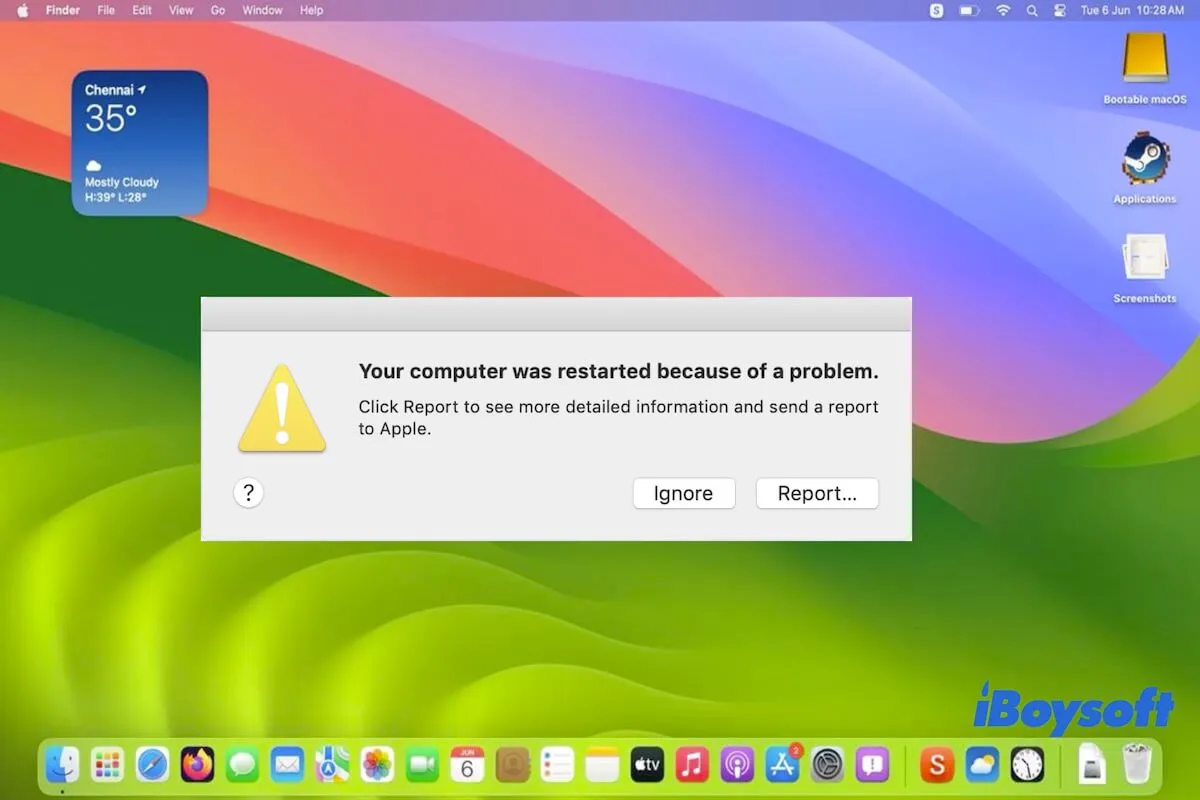
Freezing and crashing can be frustrating experiences for any macOS Sonoma user. Your workflow gets interrupted, and you might lose unsaved work. Understanding the triggers is key to finding a solution.
Often, these issues arise from software conflicts or heavy resource usage. Check your Activity Monitor to see which apps are consuming excessive CPU or memory. Sometimes, simply quitting those applications can restore stability.
If that doesn’t help, try restarting your Mac. A fresh boot clears temporary files and resets processes that may have gone awry.
Running macOS updates is also crucial; Apple frequently releases patches aimed at improving performance and fixing bugs associated with freezing or crashing.
You may want to consider narrowing down the problem by booting in Safe Mode. This disables unnecessary extensions and allows only essential services to run, helping identify problematic software without interference from other programs.
– Battery Draining Quickly
Battery drain can be a major annoyance for macOS Sonoma users. If you notice your laptop losing charge faster than usual, it’s time to investigate.
Start by checking which applications are consuming power. Open Activity Monitor and navigate to the Energy tab. This will show you the energy impact of all running apps. Close any unnecessary programs that could be sapping your battery life.
Next, consider adjusting your display settings. Lowering screen brightness or setting it to automatically adjust based on ambient light can significantly extend battery longevity.
Also, ensure that background processes aren’t working overtime. Disable features like “Hey Siri” or automatic updates when not needed—these can quietly munch away at your battery reserves.
Lastly, keeping macOS updated is crucial. Updates often come with optimizations that enhance power efficiency and overall performance.
– Wi-Fi Connectivity Problems
Wi-Fi connectivity problems can be frustrating, especially when you rely on a stable internet connection. If your macOS Sonoma is struggling to stay connected, there are several steps you can take.
First, check your Wi-Fi network settings. Sometimes the simplest fix is just reconnecting to your network. Forget the current network and rejoin it with the correct password.
If that doesn’t work, try resetting your router. Unplugging it for about 30 seconds often helps clear any temporary glitches causing issues.
Additionally, ensure that no VPN or firewall settings are interfering with the connection. Disabling these temporarily may reveal if they’re part of the problem.
Also consider moving closer to your router if possible; physical barriers can weaken signals significantly. Finally, updating macOS Sonoma might resolve underlying bugs affecting Wi-Fi functionality as well.
– Bluetooth Connection Problems
Bluetooth connection problems can be frustrating, especially when you rely on wireless devices for convenience. If your Mac running macOS Sonoma isn’t connecting to Bluetooth peripherals like headphones or keyboards, there are a few steps you can take.
First, ensure that Bluetooth is enabled in the menu bar. Sometimes it gets toggled off accidentally. A quick toggle might just do the trick.
Next, try unpairing and then re-pairing the device. This often resolves minor glitches that prevent smooth connectivity.
If issues persist, resetting your Mac’s Bluetooth module could help. Hold down Shift + Option while clicking on the Bluetooth icon in the menu bar. From there, select “Reset the Bluetooth module.”
Lastly, check for any interference from other electronic devices nearby which may disrupt signals. Adjusting your environment might lead to better connections with your favorite gadgets.
Advanced Troubleshooting Options:
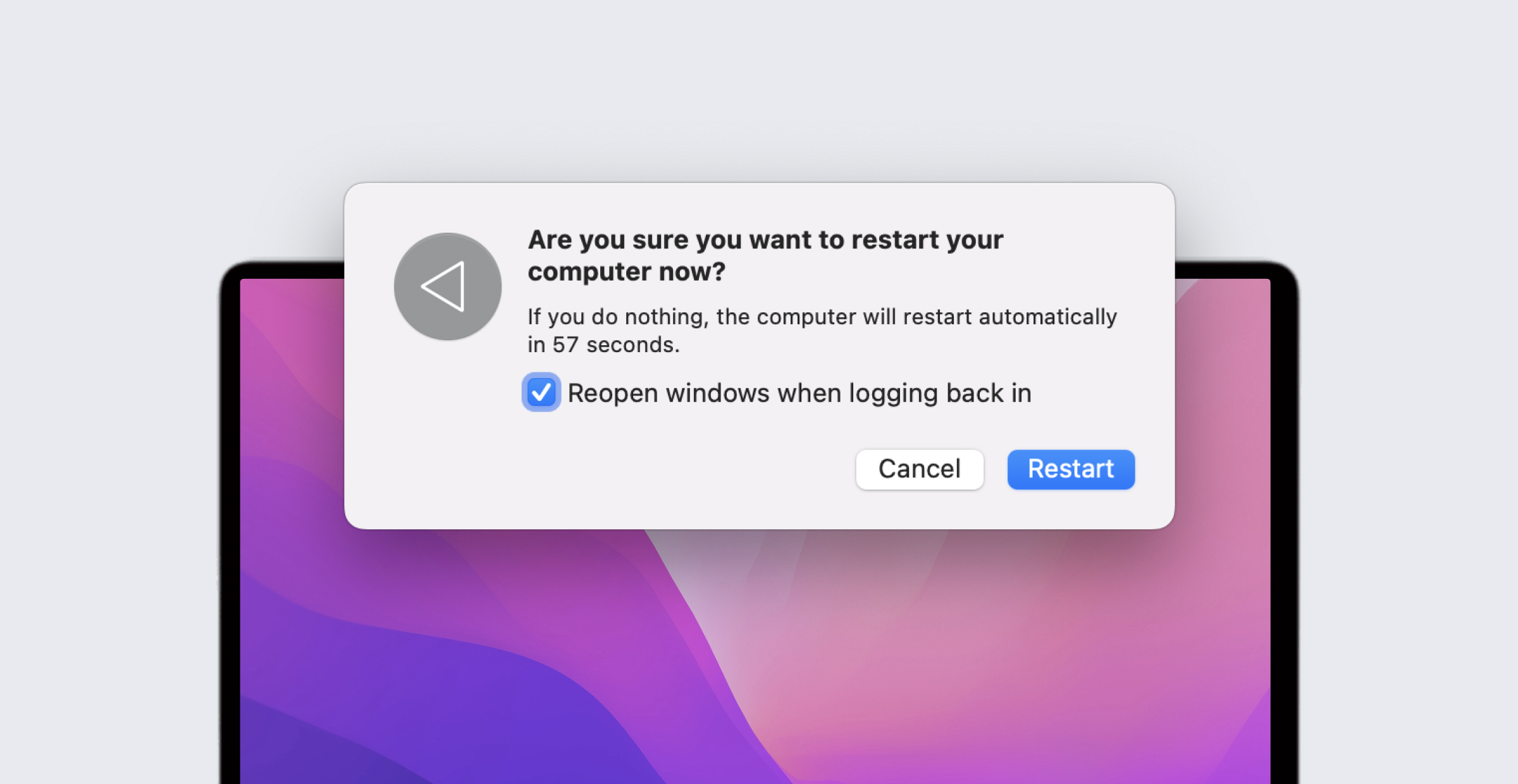
When basic fixes don’t resolve your Sonoma issues, consider advanced troubleshooting methods.
Resetting the PRAM and SMC can often restore normal functionality. This process clears out certain settings that may be causing conflict. It’s a straightforward procedure and might save you from larger headaches.
Booting into Safe Mode is another effective option. This mode runs only essential system functions, allowing you to identify problematic software or extensions without interference from third-party applications.
If these steps fail, a clean installation of macOS Sonoma could be the solution. While this method requires backing up your data, it ensures that any underlying issues are resolved by starting fresh with a new OS environment.
Exploring these options can help get your Mac back on track quickly and efficiently.
– Resetting PRAM And SMC
Resetting the PRAM (Parameter RAM) and SMC (System Management Controller) can resolve various macOS Sonoma issues. These components store crucial system settings that can sometimes become corrupted.
To reset the PRAM, shut down your Mac first. Then power it back on while holding Command + Option + P + R keys simultaneously. Keep holding these keys until you hear the startup sound a second time or see the Apple logo reappear.
For resetting the SMC, shut down your Mac again. If you have a MacBook with an Intel processor, press Shift + Control + Option on the left side of the built-in keyboard along with the power button for ten seconds. Release all keys and turn on your device.
These resets are simple yet effective methods to restore functionality without extensive troubleshooting efforts. They’re often overlooked but can yield significant improvements in performance and stability.
– Safe Mode Booting
Safe Mode is a powerful tool for diagnosing issues in macOS Sonoma. It starts your Mac with the bare minimum of software and drivers, helping you identify if third-party apps are causing problems.
To boot into Safe Mode, restart your Mac and hold down the Shift key as soon as it powers on. You’ll know you’re in Safe Mode when you see “Safe Boot” in the menu bar.
Once inside, take time to test how your system behaves. Check for slow performance or crashing apps. If things run smoothly here, it’s likely something external triggering the chaos.
You can also use this mode to remove problematic applications or extensions that might be hindering performance. After you’ve made adjustments, simply restart your Mac normally to exit Safe Mode and revert back to standard operations.
– Clean Installation Of MacOS Sonoma
If you’re encountering persistent Sonoma issues, a clean installation might be the best solution. This process wipes your system and reinstalls macOS Sonoma fresh. It’s like hitting the reset button on your Mac.
Before diving in, back up all essential data using Time Machine or another reliable method. You don’t want to lose any vital files during this transition.
To start, create a bootable USB installer for macOS Sonoma. Apple provides clear instructions on their site, guiding you through formatting the drive and downloading the operating system.
Once set up, restart your Mac while holding down the Option key until you see the boot menu. Select your USB installer and follow the prompts to erase your disk before installing macOS Sonoma anew.
After installation completes, restore files selectively from your backup to avoid dragging along old problems linked with sonoma issues.
Prevention Tips For Future Issues
To keep your macOS Sonoma running smoothly, regular maintenance is key. Start by updating your software frequently. Keeping everything up-to-date helps fix bugs and improve performance.
Next, manage your storage wisely. Remove unnecessary files and applications. Use tools like Disk Utility to optimize disk space and run first aid checks.
Consider monitoring system resources as well. Activity Monitor can help you identify which apps are hogging CPU or memory, allowing you to take action before issues arise.
Regularly back up your data too. Utilize Time Machine for seamless backups so that if problems do occur, you’re prepared.
Lastly, develop a habit of restarting your Mac occasionally. A simple reboot can clear temporary files and refresh the system’s performance without requiring extensive troubleshooting later on.
Conclusion: Keeping Your MacOS Sonoma Running Smoothly.
Maintaining the performance of your macOS Sonoma is crucial for a seamless user experience. Regular updates, optimized settings, and routine maintenance can go a long way in preventing issues. Always keep an eye on resource-heavy applications that may slow down your system.
Utilizing features like Activity Monitor helps track what’s consuming your Mac‘s resources. Additionally, managing storage effectively ensures you have ample space for optimal operation.
Engaging with community forums or Apple support can provide valuable insights into common sonoma issues faced by others, offering solutions that might work for you too. Adopting these practices not only enhances performance but also prolongs the lifespan of your device.
With careful attention and proactive measures, you’ll find that keeping your macOS Sonoma running smoothly becomes second nature.